
01 / A practical fit
A working record between the desk and the data hall.
Your asset register may describe what should be in a rack. A project plan may show what is going to change. The person standing in front of the cabinet still needs a practical way to record what is actually there.
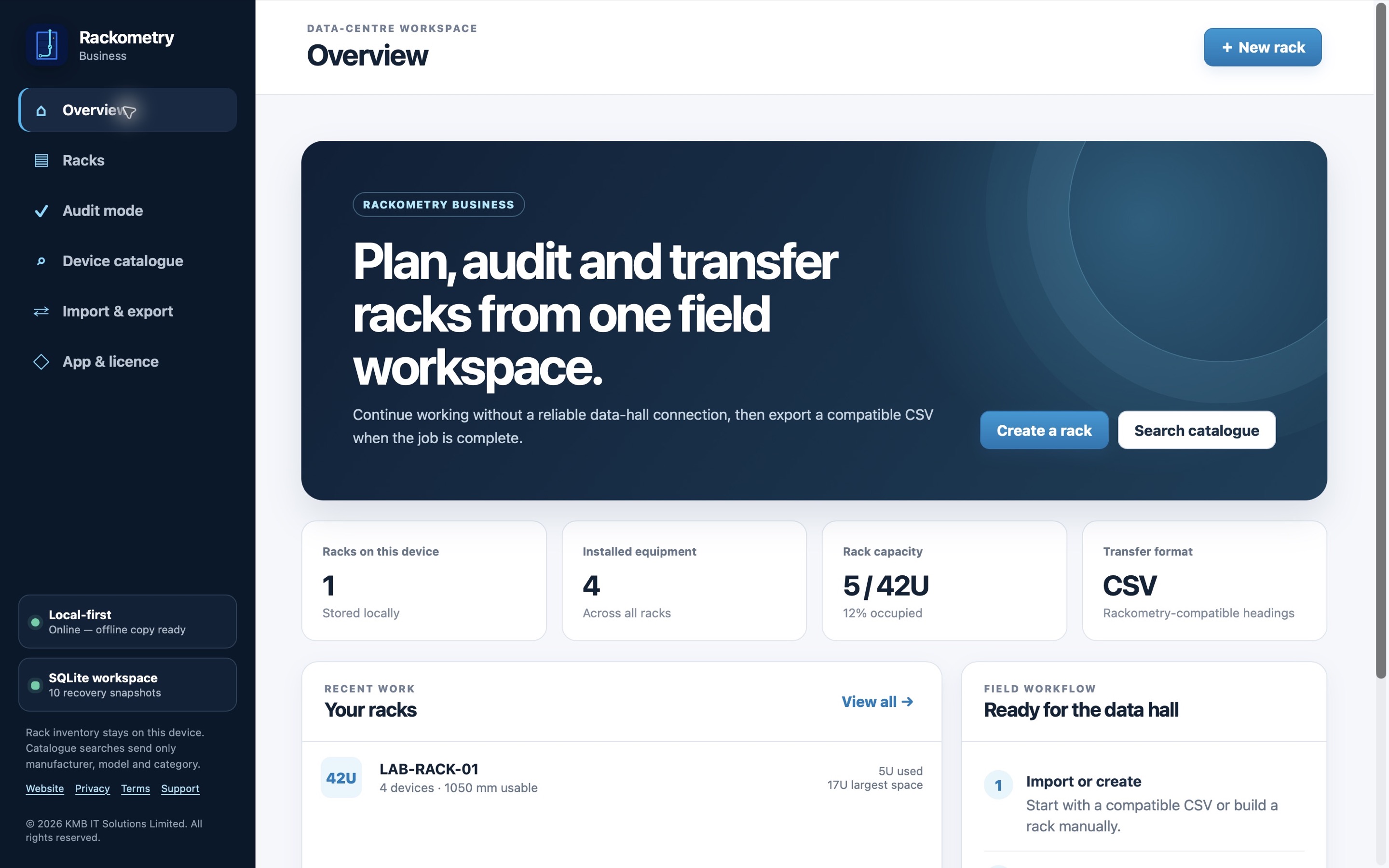
Rackometry Business provides that desktop workspace. Build or import a rack record, review the front and rear views, record equipment and power details, and audit the result against what you find on site. Export the checked information for review or onward import.
It is intended for infrastructure teams, rack auditors and organisations documenting installations or changes. It complements your DCIM, asset register and project-handover process; it does not replace the system your organisation treats as its authoritative inventory.
This guide covers the organisation-licensed Rackometry Business desktop app. It is separate from the personal Rackometry Apple app and from a separately arranged, completely offline deployment.
02 / The rack record
More than a list of serial numbers.
A rack record brings the physical location, identity and working notes together. Front and rear views help you consider equipment positions, rather than keeping everything in an unstructured list.
- Rack and position: rack identity, height and equipment U positions.
- Equipment identity: manufacturer, model, asset tag, serial number and hostname.
- Equipment types: device, PDU and blade-chassis records where relevant.
- Power information: two feeds, including PDU outlet, cable label and tap-off or supply-source details.
- Context: device notes, rack notes and separate audit comments.
The device catalogue can help you find public equipment specifications using category, manufacturer and model. Review the source and verify important dimensions or ratings before relying on them. Rackometry is not an electrical calculation, structural assessment or engineering approval tool.
03 / On site
Keep expected and observed side by side.
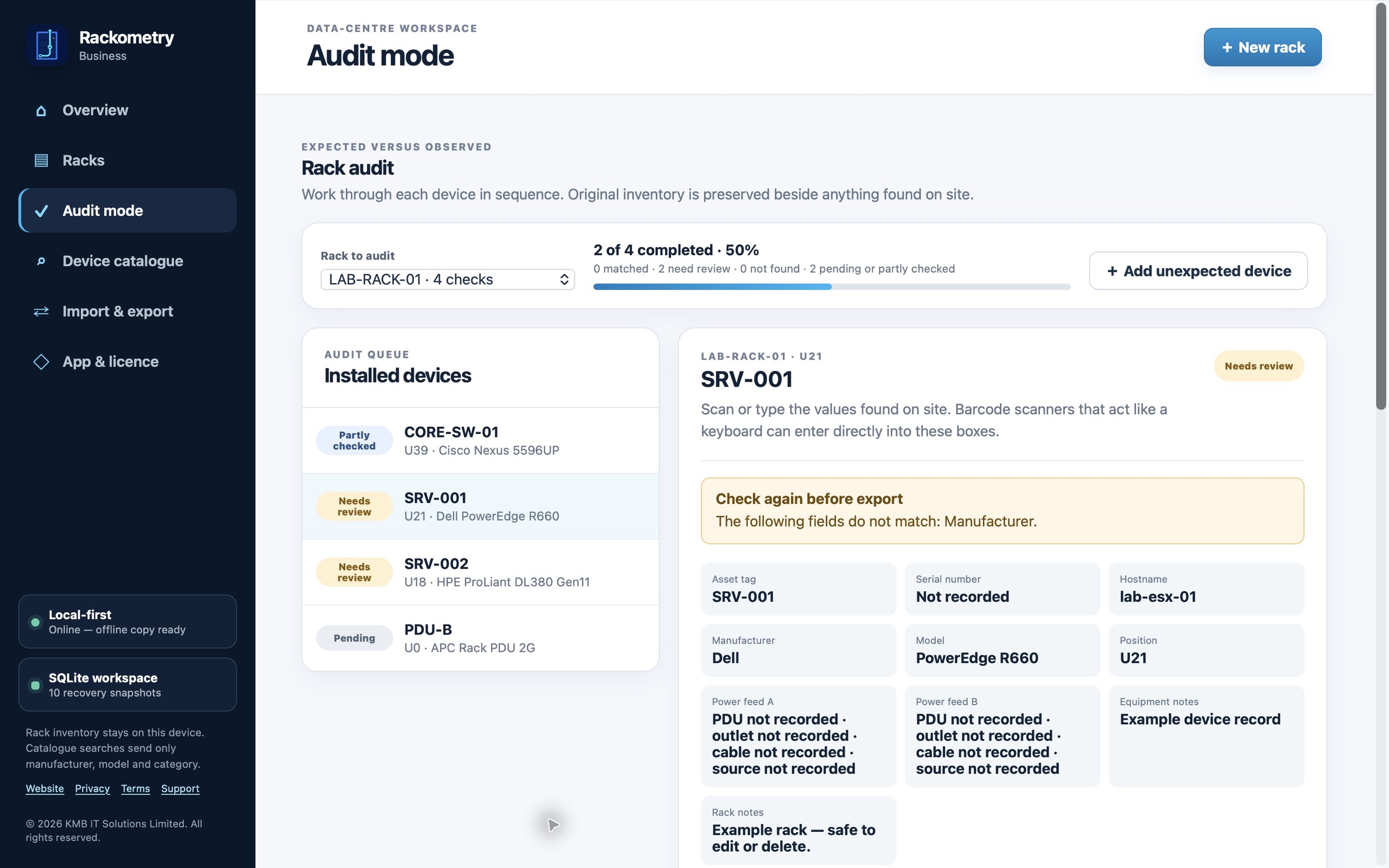
Audit mode starts with the expected record and gives you a queue of equipment to check. You can record what matches, what differs, what could not be found and any unexpected equipment. Findings stay visible for review instead of disappearing into an overwritten inventory field.
- Prepare the expected record.Create a rack or import a compatible CSV. Confirm you have the correct cabinet and source information.
- Check the physical equipment.Work through the rack, capture observed identifiers and positions, and add notes explaining differences.
- Review the result.Resolve or explain discrepancies before exporting a handover for your organisation's normal approval process.
An empty observed field means it has not been checked. If you checked a value and it is genuinely absent, use the explicit missing option. Only confirm that everything matches after checking the whole item.
Fictional example
The expected record puts SRV-001 at U21. On site, you find a different manufacturer or an unreadable serial label. Record the observation and an audit note; leave the difference visible for the reviewer rather than silently changing the source record.
Use a scanner you already understand.
Keyboard-style USB or Bluetooth barcode scanners enter text into the active field. Place the cursor in the asset-tag or serial box, scan, then check the result against the label. This workflow does not require the app to photograph the rack or automatically identify every device.
04 / Hand back useful information
A structured file, not another isolated inventory.
Compatible CSV import lets you start from existing records rather than retyping everything. Check your headings, rack identities and positions, and make a full backup before importing. Valid imports add racks; they are not an automatic in-place update to your existing inventory.
CSV export provides a structured record for colleagues to review or for onward import into another system. Agree the destination, mapping and approval process with the owner of that system. Exporting a file does not mean the receiving inventory has been updated or approved.
A CSV handover is not a substitute for the full Rackometry workspace backup. Keep both when your organisation's workflow calls for them.
There is no automatic cloud collaboration or live sync between computers. Sharing a workspace or findings is an intentional export/import or backup/restore task under your organisation's controls.
05 / Your data boundary
Rack records stay on your computer.
Rack plans, asset tags, serials, notes and audit findings are stored locally. They are not uploaded to KMB's licensing service. You control the files you export, the backups you retain and who receives them.
Local-first does not mean the standard app never uses the internet. Activation and licence checks use organisation and device-bound licensing information. Online catalogue searches send public equipment search terms such as manufacturer, model and category, not your rack inventory or audit findings.
Protect the workspace as well as the computer.
Save a full backup after significant work, keep dated copies outside the computer being protected and test recovery using fictional records. The app retains up to ten recent local recovery snapshots, but snapshots on the same computer will not protect you if that computer is lost or fails.
CSV and JSON exports are readable files, not app-encrypted vaults. Use your organisation's approved access controls, encrypted storage and transfer methods. A full restore replaces the current workspace rather than merging it; preserve a fresh backup before restoring.
KMB does not receive your local rack records and cannot reconstruct a lost workspace. Read the Business privacy information for the separate licensing and service data.
06 / Before rollout
Check the computer and the site policy.
Windows
Windows 11. Install the official Microsoft Store edition through a route approved by your IT team.
Mac
macOS 13.0 or later and an Apple M1 chip or later. The current Mac edition does not support Intel Macs.
Both Store editions are free to install. Trial or paid organisation activation controls access to the licensed features. Updates use the official Store route for that platform; an organisation's device-management policy may govern how they are installed.
Field work without a reliable connection.
Initial activation requires internet access. The current standard release supports normal offline field work for up to 30 days between licence checks, subject to the licence's own expiry. Check the next validation date in App & licence before leaving for site.
A completely air-gapped site is different. Contact KMB before purchasing to discuss whether a separate offline arrangement is appropriate; it is not included in the standard Store licence.
If a managed computer blocks a Store, website or licence service, ask your IT team to review the deployment. Do not disable company security controls. Installing the app for one operating-system user does not by itself create a shared database for every person who signs in.
07 / Organisation access
Evaluate the workflow before committing.
An eligible organisation can start a 14-day evaluation without a payment card. Verify a work email on the website, save the one-time organisation activation key securely, then activate the desktop app. The evaluation covers up to 10 authorised users and 20 computers.
The standard paid organisation licence has the same base capacity. The published GBP offer is £149 for the first year, then £249 per year. Additional capacity packs add 10 users and 20 computers for £149 per pack per year. Review the checkout for the final currency, tax, quantity and renewal amount.
Paddle processes website payments as merchant of record. After a completed purchase, purchaser-email verification protects delivery of the organisation key. Keep the receipt and key securely; do not send the key in ordinary email or chat.
If licensed access ends, existing records remain available to view, export and back up; editing and licensed features pause until access is restored. Cancelling renewal is separate from uninstalling the app.
Read the Business terms and refund information before purchasing. This guide explains the product and does not replace those terms.
08 / Your next step
Try one representative rack.
Start with fictional records or a sample you have permission to use. Create or import a rack, scan an identifier, record a discrepancy, export the handover and make a full backup. Then decide whether it fits your team's actual process.
The public guide explains what the app does. The separate customer setup guide covers the step-by-step operating and recovery instructions.
Questions about your deployment? Contact KMB IT Solutions.